Showing posts with label Groovy. Show all posts

Monday, 7 April 2014

Validator in oracle ADF, Using af:attribute to make validation easy.

Hello all,

This post I will try to focus on how we can make validations in an editable table more effectively.

So what would we do if we have two attributes in a row in a table and we need to validate one on the basis of the other?

The answer is simple.

  • We will get the instance of the viewObject 
  • Then get the current row 
  • Then we will get the attribute with which we need to compare and then we will compare and check the validation.
This process is fine, but i have a more easy and effective way to do so.

I have created a Transient attribute in EmployeeVO where the newSalary of the Employee is to be entered. We have to make sure that the new Salary is greater than old salary.

Drag the EmployeeVO into the page. Then add an af:attribute component in the inputText of newSalaryTrans . Give attribute name and a value here i have used 'oldSal' and assigned with value of old Salary i.e. #{row.Salary}.


Now we need to implement the validation and for that I created a Validator on the NewSalaryTrans field.


In the bean I have used the code given below :


    public void newSalaryVAL(FacesContext facesContext, UIComponent uIComponent, Object object) {
        Object val = uIComponent.getAttributes().get("oldSal");
        System.out.println("New Sal is  : "+object+" Old Sal is  : "+val);
        if(val != null){
            BigDecimal oldVal = (BigDecimal)val;
            BigDecimal newVal = (BigDecimal)object;
             if(oldVal.compareTo(newVal) >=0 ){
                throw new ValidatorException(new FacesMessage("New Salary Cannnot be less than Old Salary!"));
            }
        }
    }

On putting less value in newSalaryTrans


Here is the sample example : NewValidatorTestApp


Thursday, 3 April 2014

ADF : Alternate of Current Row Selection In af:table | Using f:attribute in ADF

Today am about to show how we can get the value of the selected row from a table without using the RowSelection property of the table.

This came to my mind when I was working on an editable table on a PopUp. And the scenario was that when the user clicks on a link or button in the table then an another table on a new popup need to be shown. The other thing was that both the tables contains large number of rows.

The problem was when we were selecting the current row in table the Framework was trying to make the selected row as current, because of which it was refreshing the table.So every time I select a row the whole table was being refreshed to set selected row as current.

So I tried out some other way to to the same.

Here is the sample Application .

I have created a Application with HR Schema with Employee and Department tables. On the page I have dropped two popUps, First for department table and second for employee table.

Drag the Department table on the popup and set rowSelection to none.

Put a Command button the department table. And add an f:attribute in the commandButton and give it a name and value as department id.


Here I have used Department Id as it is the key to department table like wise you can use user primary key as key. And then you can find the row from the key.

Then on other popup drag the employee table.
In the employees table create a viewCriteria on DepartmentId.
On click on OpenEmployee button, I have used a method to get the attibute.


    public void openEmpACTION(ActionEvent actionEvent) {
        RichCommandButton ob = (RichCommandButton)actionEvent.getSource();
        Integer dept = (Integer)ob.getAttributes().get("DeptId");
        System.out.println("Dept id is : "+dept);
        OperationBinding binding = getBindings().getOperationBinding("setDeptIdInEmployee");
        binding.getParamsMap().put("deptId", dept);
        binding.execute();
        showPopup(popEmp, true);
        //   setDeptIdInEmployee
    }
    /**Method to get Binding Container*/
    public BindingContainer getBindings() {
        return BindingContext.getCurrent().getCurrentBindingsEntry();
    }

I have created a method setDeptIdInEmployee  in AMImpl and added it to client and used in the bean. Here is the code of AMImpl.


    public void setDeptIdInEmployee(Integer deptId){
        ViewObjectImpl employeesView1 = this.getEmployeesView1();
        employeesView1.setNamedWhereClauseParam("DepartmentBind", deptId);
        employeesView1.executeQuery();
    }

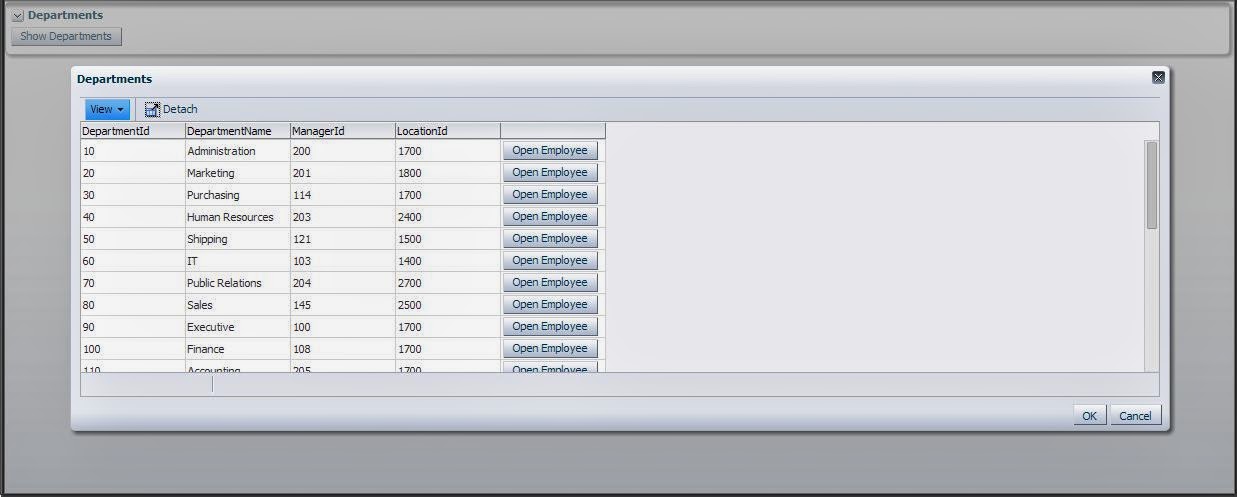
On running the application the following page opens

Then Click on the Show Departments button


Now click on the button open Employee and the next popUp will show Employee of Selected Department. here when clicked on Sales row
I am attaching a sample application . You can download it here  :TableOnPopupApp
Like wise you can use this to perform other operations too as now we have the select row.

Saturday, 20 April 2013

ADF: Calculating total sum of Salary of all the employees in a Department using Groovy expression.

If there is a condition in which you have to calculate the sumtotal of a VO field in ADF (like if you want to calculate the sum of salary of all the employees of a Department) , then better of all option is to use groovy expression to calculate the sum.
Here is an application which is used to calculate the sum of salary of all the employees of a given department.

  1. Create a new ADF application and create database connection with HR Schema. Generate the Business components. Here am using two tables ie Employee and Departments.
  2. Now create a ViewLink between Department and Employee using DepartmentId as foreign key.

  3. Use the Accessor to get the salary from the employee table to department table.
  4. Then create a transient variable in the DepartmentVO, and then assign value to it using the expression

    EmpVO.sum("SalTot");
  5. Here is an screen shot. The name 'EmpVO' is the name of the Accessor of the Employee table in the deptToEmpViewLink.
  6. Then run the AM to see the Application.
  7. You can find the ADF application at Groovy.rar

Friday, 12 April 2013

how to populate data in ADF table from Bean using POJO | Populating af:table using ArrayList

Hi,

This post is about populating af:table from a POJO from the bean.

Suppose we have to show information related to books to the user.
So first we have to understand how we populate a table from a List.
  1. For this we have to create a dataType for storing the data of the book.
  2. For the same, we have created a Class named BookInfo. Here is the code for on the BookInfo class.

    package edittableonpojo.view.dc;
    
    public class BookInfo {
        private String bookDesc;
        private String bookAuthNm;
        private String bookSrNo;
        
        public BookInfo(String bookSrNo,String bookDesc,String bookAuthNm) {
            super();
            this.bookSrNo = bookSrNo;
            this.bookAuthNm = bookAuthNm;
            this.bookDesc = bookDesc;
        }
    
        public void setBookDesc(String bookdesc) {
            this.bookDesc = bookdesc;
        }
    
        public String getBookDesc() {
            return bookDesc;
        }
    
        public void setBookAuthNm(String bookAuthNm) {
            this.bookAuthNm = bookAuthNm;
        }
    
        public String getBookAuthNm() {
            return bookAuthNm;
        }
    
        public void setBookSrNo(String bookSrNo) {
            this.bookSrNo = bookSrNo;
        }
    
        public String getBookSrNo() {
            return bookSrNo;
        }
        
        public String getKey(){
            return this.getBookSrNo();
        }
        
        public String toString(){
            return bookSrNo+"_"+bookAuthNm+"_"+bookDesc;
        }
    }
    

  3. Then we have to create a Bean from which data will be provided to the table. In the constructer of the Bean the code is written to populate the data in the ArrayList. Here is the code of the Bean.

    package edittableonpojo.view.bean;
    
    import edittableonpojo.view.dc.BookInfo;
    
    import java.util.ArrayList;
    
    public class BookBean {
        private ArrayList<BookInfo> bookDtls = new ArrayList<BookInfo>();
    
    
        public BookBean() {
            bookDtls.add(new BookInfo("1A", "The Alchemist", "Paulo Cohelo"));
            bookDtls.add(new BookInfo("2A", "Game Of Thrones", "George R. R. Martin"));
            bookDtls.add(new BookInfo("3A", "Five Point Someone", "Chetan Bhagat"));
            bookDtls.add(new BookInfo("4A", "Harry Potter", "J.K.Rowling"));
            bookDtls.add(new BookInfo("5A", "Wings of Fire", "A.P.J Abdul Kalam"));
        }
    
        public ArrayList<BookInfo> getBookInfo() {
            return bookDtls;
        }
    }
    

  4. Now we have to create a Page where we can show the data of the List. For this, I have created a jspx page and dropped an af:table in which we will show the data and done some styling ;).
  5. The table contains three Columns
    1. Book SrNo.
    2. Author Name.
    3. Book Description
  6. In the Value attribute of the Table from the Property inspector, select the value of the attribute from the bean-like   
<af:table var="row" rowBandingInterval="0" id="t1" value="#{viewScope.BookBean.bookInfo}"
                                  rowSelection="none"
                                  inlineStyle="line-Height: 15px;">

  1. In the Columns drop af:outputText and in the value of the outputText put the value like value="#{row.bookAuthNm}" for showing the Author name , and similarly you have to put values in other rows.
  2. Here is the code of the jspx page.

    <?xml version='1.0' encoding='UTF-8'?>
    <jsp:root xmlns:jsp="http://java.sun.com/JSP/Page" version="2.1" xmlns:f="http://java.sun.com/jsf/core"
              xmlns:af="http://xmlns.oracle.com/adf/faces/rich">
        <jsp:directive.page contentType="text/html;charset=UTF-8"/>
        <f:view>
            <af:document title="untitled1.jspx" id="d1">
                <af:form id="f1">
                    <af:panelBox text="Book Details" id="pb1">
                        <f:facet name="toolbar"/>
                        <af:panelCollection id="pc1" styleClass="AFStretchWidth">
                            <f:facet name="menus"/>
                            <f:facet name="toolbar"/>
                            <f:facet name="statusbar"/>
                            <af:table var="row" rowBandingInterval="0" id="t1" value="#{viewScope.BookBean.bookInfo}"
                                      rowSelection="multiple"
                                      inlineStyle="line-Height: 15px;">
                                <af:column sortable="true" headerText="Book SrNo." id="c1">
                                    <af:outputText value="#{row.bookSrNo}" id="ot1"/>
                                </af:column>
                                <af:column sortable="false" headerText="Author Name" id="c2">
                                    <af:outputText value="#{row.bookAuthNm}" id="ot2"/>
                                </af:column>
                                <af:column sortable="true" headerText="Book Description" id="c3" width="300">
                                    <af:outputText value="#{row.bookDesc}" id="ot3"/>
                                </af:column>
                            </af:table>
                        </af:panelCollection>
                    </af:panelBox>
                </af:form>
            </af:document>
        </f:view>
    </jsp:root>
    

  3. The jspx page looks like this.
  4. Now simply run the application.
  5. After the screen that comes up is something like this.
Here is the sample application : TableOnPOJO.rar

Thursday, 21 February 2013

ADF: Show inline messege

## Show inline messege

public void showMessageButton(ActionEvent actionEvent) {

FacesMessage msg=new FacesMessage("This is a FacesMessage that+
"shows Fatal Error.");
msg.setSeverity(FacesMessage.SEVERITY_FATAL);
FacesContext fctx=FacesContext.getCurrentInstance();
fctx.addMessage(null, msg);

}


ADF: Using groovy expression (sample format)

## Using groovy expression (sample format)

1)When used to calculate many fields of an VO and show the sum in the same VO.

object.getRowSet().sum("Salary")

2)Sample format to use Groovy expression for transient object

CommissionPct==null? Salary:Salary+Salary*CommissionPct
   (Condition)    ?  (When true) : (When false)

Java code for email validation in ADF

## Code for email validation

public void emailValidator(FacesContext facesContext, UIComponent uIComponent, Object object) {
       if(object!=null){
           String name=object.toString();
           String expression="^[_A-Za-z0-9-]+(\\.[_A-Za-z0-9-]+)*@[A-Za-z0-9]+(\\.[A-Za-z0-9]+)*(\\.[A-Za-z]{2,})$";
           CharSequence inputStr=name;
           Pattern pattern=Pattern.compile(expression);
           Matcher matcher=pattern.matcher(inputStr);
           String msg="Email is not in Proper Format";
           if(matcher.matches()){
              
           }
           else{
               throw new ValidatorException(new FacesMessage(FacesMessage.SEVERITY_ERROR,msg,null));
           }
       }
   }

ADF: Code to use popup

## Code to use popup

Note: For using this code, first you have to make binding of the popup which is displayed on your webpage.
And here in the code I have variable pop to bind the popup.


1)showPopup method to call popup
private void showPopup(RichPopup pop, boolean visible) {  
    try {  
      FacesContext context = FacesContext.getCurrentInstance();  
      if (context != null && pop != null) {  
        String popupId = pop.getClientId(context);  
        if (popupId != null) {  
          StringBuilder script = new StringBuilder();  
          script.append("var popup = AdfPage.PAGE.findComponent('").append(popupId).append("'); ");  
          if (visible) {  
            script.append("if (!popup.isPopupVisible()) { ").append("popup.show();}");  
          } else {  
            script.append("if (popup.isPopupVisible()) { ").append("popup.hide();}");  
          }  
          ExtendedRenderKitService erks =  
            Service.getService(context.getRenderKit(), ExtendedRenderKitService.class);  
          erks.addScript(context, script.toString());  
        }  
      }  
    } catch (Exception e) {  
      throw new RuntimeException(e);  
    }  
  }

2)And import these packages

import org.apache.myfaces.trinidad.event.SelectionEvent;
import org.apache.myfaces.trinidad.render.ExtendedRenderKitService;
import org.apache.myfaces.trinidad.util.Service;
import javax.faces.context.FacesContext;

3)Use to show or hide popup in the page
private RichPopup pop;
showPopup(pop, true);

** incase you want to hide the popup, use

showPopup(pop, false);

ADF: Code to show error msg in page

## Code to show error msg  in page


throw new ValidatorException(new FacesMessage(FacesMessage.SEVERITY_ERROR,”msg”,null));


Note: This code works only in the validator block