Showing posts with label oracle ADF. Show all posts

Sunday, 5 January 2020

CRUD operation on a Webpage in ADF Application

This is a followup post on how we can create an ADF Page based on the business components created in my last post. https://adfjavacodes.blogspot.com/2019/12/creating-first-oracle-adf-application.html

1. Create a page by using clicking on the new Page in the ViewController project.

Creating new JSPX Page

2. Enter the page name and select the Document type. The document type can be of two types
 a. Facelets (JSF Pages)
 b. JSP XML (JSP Pages).

Here we are using JSPX.

Adding page name in oracle ADF

3. From the data control Drag and drop the view object instance on the page.
4. Selecting Row navigation to create First, Next, Previous, Last buttons automatically.

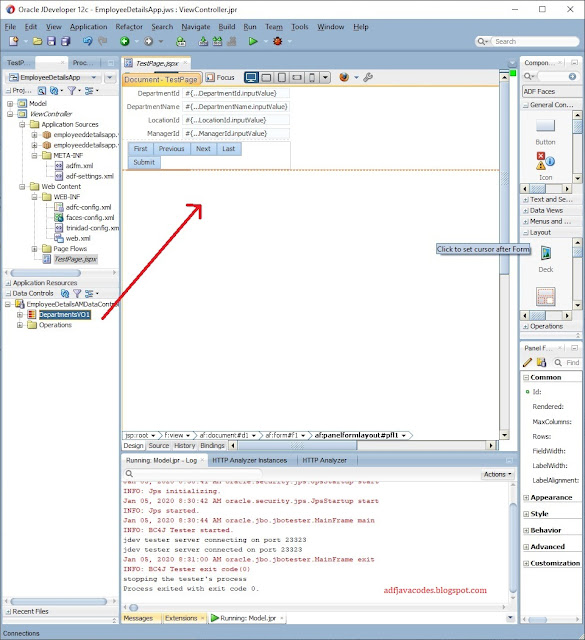
5. Now as you can see the form is created with navigation buttons.


6. From the Data control Drag and drop Commit and Rollback buttons to Commit and rollback the transactions. 


 7. After that drag and drop the data control on the page in form of a table.


8. Select the highlighted options.
a. Enable Sorting (To enable inbuilt sorting in the table)
b. Enable Filtering (To enable inbuilt sorting in the table)
c. Read-only Table (To create a read-only table where editing in table cannot be done) 


9. Drag and drop the delete button from Data Control to delete the record.


10. Now run the Application.


11. The Application will open up in a browser. The Page contains two parts. Form view where the user will do the DML Operation and Table view to view the total records.


12. To create a record click on the createInsert button. It will create a blank record and insert into the view object.


13. A blank record will be created.


14. Fill the relevant values and commit the data.


15. The record is saved and can be viewed in the table.


16. Now we have to edit a record, here we select the Department IT for editing. After edit, we click on Submit Button to submit the record and click on commit to save the record.

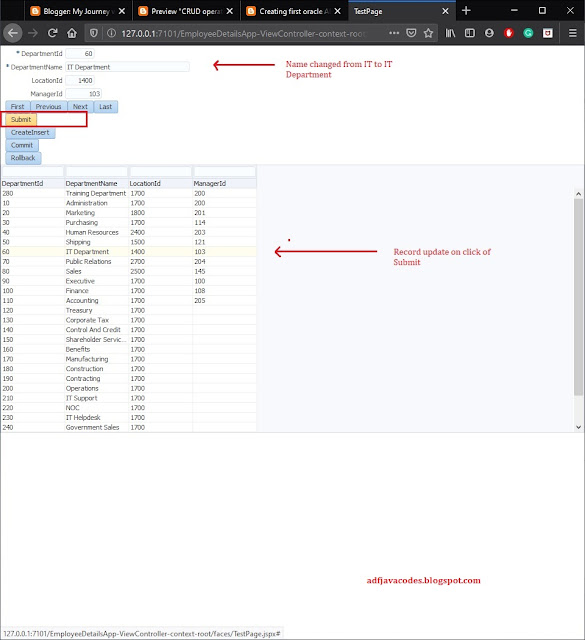


16. Now we have to check deletion. So select the record and click on the delete button and then click on the commit button to save the record.


If you have any confusion please let me know :)

Sunday, 8 December 2019

Ways to Filter rows from View Object in oracle ADF. When and Which method to use?

During development, we always encounter a situation where we have to programmatically filter rows from a ViewObject. In this blog, I will talk about the different ways through which this can be done. However, there no one fit for all.

I will also try to explain the condition or scenario in which one should be used and also their Pros and Cons.

1. View Criteria 

View Criteria is used to filter the rows by running the Criteria in the database. It runs a WHERE CLAUSE over the query for your View Object. Let us take an example.

Suppose we have a View Object EmployeeVO with Query SELECT * FROM EMPLOYEES

Suppose we want to see the Employees of some particular department, to do so we create a View Criteria on this view object to fetch the employees of a particular department, let us say department no. 102. 

We create a view criteria EmployeeVOViewCriteria1 and apply on the view object with condition 
[DepartmentId = :DeptIdBind], where :DeptIdBind is bind variable for Department Id.

When we will filter the rows then, the framework runs query

 SELECT * FROM (SELECT * FROM EMPLOYEES) WHERE DEPARTMENT_ID = 100

and return the result.

When view criteria should be used.

1. In the case where the query in the view object is simple runs fast and has less no. of records.
2. If the query in the view object is complex with many computations and takes time to execute, then view criteria should not be used to fetch records.
3. View criteria should is not used for a repeated task in a transaction. As whenever you will fetch records from view criteria, a query will run it will add a database hit. Again this is just a suggestion

Pros:

1. Queries run directly in the database and fetch the records.
2. Only the records which are needed will be loaded and displayed.

Cons:

1. It runs the clause over the query of the view object, so this makes the overall query a little slower than the query with direct bind variables.
2. It has to go to the database to fetch records each time it's called.


2. Direct Bind variables in the Query.

We can also use direct bind variables in the view object to filter records.
For the above case if we have to use direct bind variables then we will create the view object query like 

SELECT * FROM EMPLOYEES WHERE DEPARTMENT_ID = NVL(:DeptIdBind);

Here if we have to filter the rows for a particular department, then we will execute the query with the bind variable :DeptIdBind.
On executing the query passing bind variable as null will give all the records.

When direct bind variables should be used.

1. If the query in the view object is complex with many computations and takes time to execute, then direct filtering through bind variables should be used.
2. Loads only the required rows into the memory.
3. Direct bind variables should is not used for a repeated task in a transaction. As whenever you will fetch records, a query will run it will add a database hit.

Pros:

1. Queries run directly in the database and fetch the records.
2. Only the records which are needed will be loaded and displayed.
3. The query runs faster than the query in case of view criteria.

Cons:

1. It has to go to the database to fetch records each time it's called.
2. So every time if the filtering needs to be done, the query will be fired and a hit to the database will be made.

3. Using RowQualifier or ViewObject.getFilteredRows().

RowQualifier is used for in-memory filtering of the data in the ADF Application. 

In the case of filtering the rows with RowQualifier or getFilteredRows, the query of the view object is executed once and fetches all the data in the view object in the application memory and does the filtering of the records.

If we take the above example and filter the rows through row qualifier.

At first all the rows from the query of the view object i.e. 

SELECT * FROM EMPLOYEES

will be loaded in the memory and then the filtering will be done in the memory by comparing the attributes of the query.


When direct bind variables should be used.

1. In the case where repeated filtering is needed many filtering is needed.
2. It loads all the rows in the memory, so it should not be used in case if there are hugs no. of records in the view object.

Pros:

1. The rows are loaded once in the memory and filtering is done.
2. Query execution is needed for the first time only, on the first filter, it loads all the rows into the memory and does the filtration on the basis of that.
3. Good for filtering rows to fetch certain data repeatedly in a transaction.

Cons:

1. It loads all the data into the memory on the first hit, thus increasing memory use of the Application.
2. If the view object contains a huge number of rows, then it takes quite a time to load into memory.


Tuesday, 3 December 2019

What is Application Module Pool and how it works??

Application Module is the transaction controller of the ADF Application.
  1. Any database related activity of Business Components in ADF Application is performed through the Application Module. 
  2. Changes made by the Application Module can be Committed and Rollback at any instance of the transaction. 
  3. Application Module can perform a series of database changes in a single session. 
  4. Each Application Module creates a single database connection.

Application Module pooling is done by WebLogic to reuse the free Application Module Instances. This helps in making the Application Scalable.

That means though Application Module pooling, the application can handle transactions even if the no. of users session is greater than the no. of database connections.

The Application Module instance can be shared between users or browser clients. This helps in maintaining low memory usage and improves the performance of the Application.

When the Application Module is shared then the current transaction is saved in the PS_TXN table in the database. And after that, the Application Module instance is available for other uses.

Application Module Pooling works through Passivation and Activation.

Passivation: This is the process in which the state of an Application Module is saved in Database tables in serialized form.

Activation: This is the process in which the Application Module state is reviewed from the database tables.

Let's take an example of a User creating Sales Order and SalesOrderAM is the application Module that is being used.
  1. User login in the system to make some kind of transaction.e.g. to book Sales Order.
  2. When the request comes then Weblogic will check for free Application Module Instance.
  3. If there is no free instance in the application Module pool, then a new Application Module Instance will be created and allocated to the transaction.
  4. If there is a free instance then that instance will be allocated to that transaction.
  5. The user continues with the transaction and then when the user session is idle and some other request comes up and there is no free instance.
  6. In this case, the current Application Module state will saved in the database in PS_TXN tables. And the Application Module instance will be made available for the new request. This is called Passivation.
  7. When the second user completes its transaction and the first user resumes, in this case, the Application Module state will be reviewed from the saved state in the database. This is called Activation.
  8. Application Module instance increases until the max pool size. Max Pool Size is the maximum no. of Application Modules that can be created.

There may be cases where you will not see any entry in PS_TXN tables, this is possible if the Application Module pool size is large enough and Application Module instance sharing is not required.

What is RowQualifier in ADF?

Rowqualifier is used in ADF to programmatically filter rows. This can be used to filter the ViewObject based on one or more where clauses.

For example: If you have an employeeViewObject containing information of the employees and you want to fetch the record of the employees for some particular department. In this case, RowQualifier can be used.

RowQualifier filters the rows from the Memory. i.e. first it loads all the records of the ViewObject in the memory and then filtered the row.

RowQualifier in ADF


Tip: Never user RowQualifier on a table with large no. of records as it will take time to load all the rows into the memory and then run the filter. The application may take some time to process the request.


I have created a method in ApplicationModuleImpl to filter the rows of EmployeeVO on the basis of the RowQualifier.

 1
 2
 3
 4
 5
 6
 7
 8
 9
10
    public void getEmployeeOfDepartment(Integer DepartmentId) {
        // Employee ViewObject Instance
        ViewObjectImpl employeeVO = getEmployeeVO1();
        System.out.println("Employee Count :" + employeeVO.getRowCount());
        // Creating rowQualifier for EmployeeVO
        RowQualifier rQlfr = new RowQualifier(employeeVO);
        rQlfr.setWhereClause("DepartmentId =" + DepartmentId);
        Row[] filteredRows = employeeVO.getFilteredRows(rQlfr);
        System.out.println("Employees in Department 10 :" + filteredRows.length);
    }

On executing the method below result is printed.


We can also filter the rows using ViewCriteria in ADF Application.
What is ViewCriteria in ADF??

Monday, 2 December 2019

What is a View Object in Oracle ADF??

View Object is used to view and update data in ADF Applications.

We need a database query to perform CRUD operation in the database, that query is represented by ViewObject in oracle ADF Application.

Analogy: In database if what has to perform CRUD operation, then what would you do? You will write a Query. Right?? That query is represented by ViewObject in ADF.

It basically contains database query to fetch or update the records.

View Object are basically of 4 types.

1. Entity based ViewObject

Entity based ViewObject is based on EntityObject of ADF application and can be used to create, read, update and delete or in short perform CRUD operation a database.

how to create an Entity based ViewObject??

2.  Query based ViewObject.

Query-based ViewObject is based on Query and can be used to view the record. 

3.  Static ViewObject.

Static ViewObject is based on the static Values defined in the ViewObject. This can be used to show static content.

4. Programmatic ViewObject.

Programmatic ViewObject is used where data is populated in the ViewObject programmatically. This data is populated by using the POJO class or some database Cursor or Procedure.

how to create a Programmatic ViewObject??


Creating first oracle ADF Application

In this post, I will show how to create an oracle ADF application and create Entity Object and ViewObject and test the Business Component.

We will create the following in the blog below.
  1. Create an oracle ADF Application.
  2. Create an Entity Object.
  3. Create a View Object.
  4. Create an Application Module.

Let's start.

1. Creating an ADF Application.


Open JDeveloper and create a new Application.


Then from the dialogue select Applications->ADF Fusion Web Application. JDeveloper IDE can be used to make many types of Applications. Oracle ADF Applications are made under this head.


Creating an Application involves 6 Steps.
In first you have to write Application Name and Application Package Name. In this case, I have used the name "EmployeeDetailsAPP". I have also given the package name as "employeedetailsapp"
.

ADF Application support MVC and an Application is divided into 3 parts
  • Model (Business Layer)
  • View (View layer)
  • Controller. (Control Flow)
An ADF application is divided into two Projects, one is Model and other is ViewController.
The windows below show the first project i.e. Model and its constituents.


The windows below show the second project i.e. ViewController and its constituents.


This is the last step, here leave the selection to default.


Now application structure is made. In the middle section you can see the steps for developing the application which is shown by default.


After that you have to create database connection which will be used in the Application.


As we have created the Database Connection, the next step is to create an Entity Object.


Select the database connection which will be used for creating the Entity Object.


Now we have to select the Database Table i.e. DEPARTMENTS for which Entity Object will be created.


Click on next. Now you can see the Attributes of the Table DEPARTMENTS


In this dialog you can see the attribute properties. All the properties are inherited from Database Table. e.g. you can see the Attribute "DepartmentId" is Primary key and a mandatory column. From here the properties can be changes as per the need, but it is advised not to change these.


In this window from will see the summary. Now click on Finish.


Here is DepartmentEO which we have created.


Here are the business rules of the table which are inherited by Entity Object.


As we have created the Entity Object, now we will create a View Object based on Entity Object. This is also called updateable ViewObject.


Here we have to specify the name of the ViewObject. In the Data Source selection select Entity.


In the Entity Object section select the Entity Object for which you want to create View Object.


Then in the next dialog you will have option to select the attributes of Entity Object which will be considered while creating ViewObject.


Select the select all icon to select all the attributes.


Here you can see the attributes properties.


In this dialog you can select order by clause for your ViewObject.


This is the summary.


Now as you can see we have created DepartmentsEO and DepartmentVO.


Now to run the ViewObject we need to create an Application Module. Application Module is the Transaction Controller of the ADF Application. All the database activity are performed by Application Module.


As the name of the Application is EmployeeDetailsApp, I have names Application Module as EmployeeDetailsAM. Its good practice to give name to Application name.


Now as we have created the ApplicationModule. Go to the Data Model Section and add a instance of ViewObject from the Left panel.


Now as we have created all the needed Business components we need to run and test the Application Module.


When you run the application a tester window will appear as you can see the image below. As you can see that the fields such as DepartmentName,DepartmentId,etc. are editable. As this ViewObject is based on EntityObject, this can be used for performing CRUD operations.


In this blog i have demonstrated till the Model Layer. In the Next blog i will show you how we can perform CRUD operation on a Web page.

Followup post coming soon.... ☺️


Next Post : https://adfjavacodes.blogspot.com/2020/01/crud-operation-on-webpage-in-adf.html