Saturday, 20 April 2013

ADF: Calculating total sum of Salary of all the employees in a Department using Groovy expression.

If there is a condition in which you have to calculate the sumtotal of a VO field in ADF (like if you want to calculate the sum of salary of all the employees of a Department) , then better of all option is to use groovy expression to calculate the sum.
Here is an application which is used to calculate the sum of salary of all the employees of a given department.

  1. Create a new ADF application and create database connection with HR Schema. Generate the Business components. Here am using two tables ie Employee and Departments.
  2. Now create a ViewLink between Department and Employee using DepartmentId as foreign key.
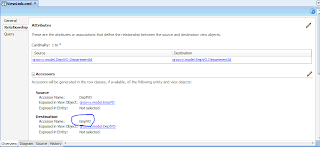
  3. Use the Accessor to get the salary from the employee table to department table.
  4. Then create a transient variable in the DepartmentVO, and then assign value to it using the expression

    EmpVO.sum("SalTot");
  5. Here is an screen shot. The name 'EmpVO' is the name of the Accessor of the Employee table in the deptToEmpViewLink.
  6. Then run the AM to see the Application.
  7. You can find the ADF application at Groovy.rar

Using resource bundle in Oracle ADF. Labels and Messeges based in different Language in ADF

Hi,


In ADF programming we can use xml file to get resource names such as labels, messages,etc instead of writing them hard coded in the code. This helps us in making the software multilingual and makes one point control on the labels and messages that are shown in the form. So if the requirement is to change the language of messages and labels in the application then you can use it in this way.

1. Create an ADF FUSION WEB APPLICATION.
2. Go to the properties of the ViewController and do the changes as shown in the figure.


3.Now go to faces-config.xml file in your application.Go to the Applications tab. There you will see a segment named Resource Bundle. There you have to give the path of your resource file and give a name,this name is used to access the bundle in the application. Here i named it as 'bundle'.


4. Create a text Resource by simply selecting any component on the form on the as shown below.
5. Select the component->go to labels in property inspector-> go to properties menu -> then select the 'Select Text Resource'.When you will select it Resource.java file will be created in the ViewController.
6. After that go to the properties of Model in the project. And make the entries as shown in the figure.Then click on the next tab i.e. Bundle search and click add button and copy and paste the same path as in ViewController Resource properties.It is shown in the figure.


7. Then Open the Resource.java file and override it with the given code.

import java.util.ListResourceBundle;
import java.io.File;
import java.util.ListResourceBundle;
import javax.xml.parsers.DocumentBuilder;
import javax.xml.parsers.DocumentBuilderFactory;
import org.w3c.dom.Document;
import org.w3c.dom.Element;
import org.w3c.dom.Node;
import org.w3c.dom.NodeList;
public class Resource extends ListResourceBundle {
   public  Resource(){
               for (int i = 0; i < 5000; i++) {
                       contents[i][0] = "";
                       contents[i][1] = "";
                   }
               }
           
     private static final Object[][] contents = new Object[5000][2];
       public Object[][] getContents() {
           try {
               File file = new File("D:\\Resource\\Resource.xml");
               DocumentBuilderFactory dbf = DocumentBuilderFactory.newInstance();
               DocumentBuilder db = dbf.newDocumentBuilder();
               Document doc = db.parse(file);
               doc.getDocumentElement().normalize();
               NodeList nList = doc.getElementsByTagName("label");
               for (int temp = 0; temp < nList.getLength(); temp++) {
                   Node nNode = nList.item(temp);
                   if (nNode.getNodeType() == Node.ELEMENT_NODE) {
                       Element eElement = (Element)nNode;
                       contents[temp][0] = getTagValue("key", eElement);
                       contents[temp][1] = getTagValue("value", eElement);
                   }
               }
           } catch (Exception e) {
               e.printStackTrace();
           }
           return contents;
           }

           private static String getTagValue(String sTag, Element eElement) {
           NodeList nlList = eElement.getElementsByTagName(sTag).item(0).getChildNodes();
           Node nValue = (Node)nlList.item(0);
           return nValue.getNodeValue();
           }
}

8. Then create a Resource.xml file in the folder D:\Resource.And in the Resource.xml copy and paste the code given below.

*Here <key></key> block refers to the key.
*Here <value></value> block refers to the value that the key block refers.


Resource.xml

<?xml version="1.0" encoding="windows-1252" ?
<bundle>
<label>
<key>MstNm_Label</key>
<value>Name</value></label>
</bundle>


9. Now we can use it in the form as a regex expression as shown simply in the text Resource on the form.
       #{bundle['Alias']}
ie. ex-#{bundle['key']}

10. To resolve the key in the bean.  


public Object resolvElDCMsg(String data) {
       FacesContext fc = FacesContext.getCurrentInstance();
       Application app = fc.getApplication();
       ExpressionFactory elFactory = app.getExpressionFactory();
       ELContext elContext = fc.getELContext();
       ValueExpression valueExp = elFactory.createValueExpression(elContext, data, Object.class);
       return valueExp.getValue(elContext);
   }

11. Now to use the Resource in the bean you can use the given code.


String message = resolvElDCMsg("#{bundle['OAMsg8.Label']}").toString();